


Hands-free remote control for Blackout Lighting Console. Transform your voice into OSC commands.
Talk directly to the app on your iOS device, or connect your walkie talkie or intercom and send commands on the run.
You can use it on your iPhone (connected to the same network as the iPad running Blackout) to have it handy wherever you are on set, or you can run it on the same iPad as the Blackout app.
Either way it's possible to connect your walkie talkie or intercom system (via third party audio connectors) to be able to run commands with your hands free to adjust your lights. Use the Wake word option to have the app only listen to specific instructions.
Perfect when you leap off into the set with a new light fixture, but leave the Blackout iPad at the station.
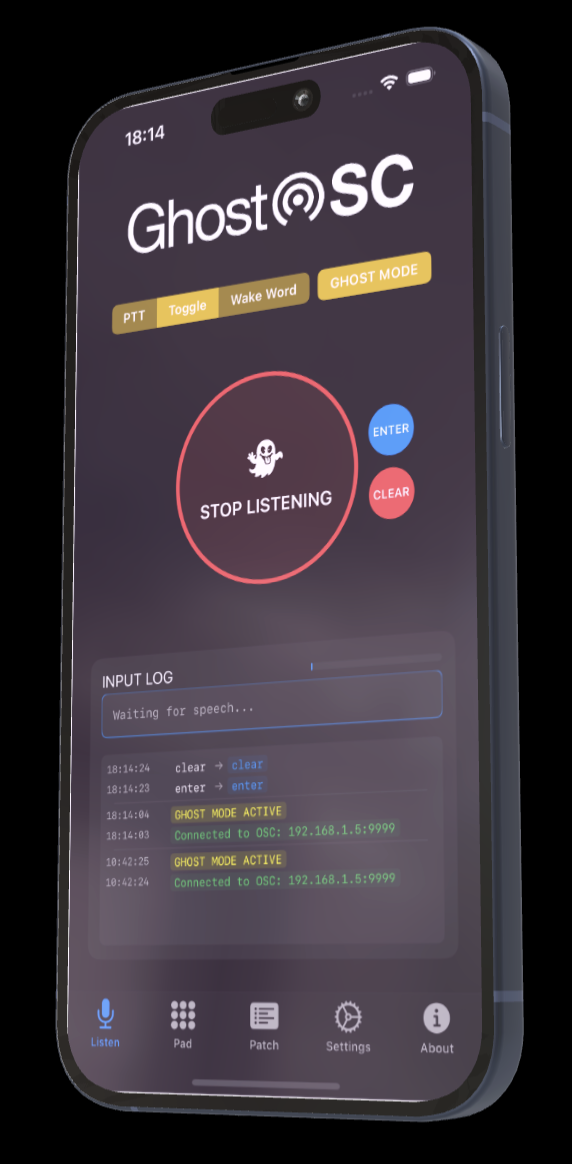
Choose the mode that fits your workflow
The Simple Way
Speak Blackout syntax straight into GhostOSC. Commands like '101 at 50 ENTER' or '101 CCT at 4500 ENTER' work instantly.
With Auto-Commands like Auto-ENTER the commands gets even shorter.
The Smart Way
The experimental, and still evolving, mode where you talk naturally and let GhostOSC interpret your commands. Example 'turn on all the skypanels and make them tungsten' and watch the magic happen.
Multiple input methods for different situations
Hold down a button while you speak, then let go. Perfect for precise control.
Tap once to start listening, tap again to stop. Commands fire when speech pauses.
Just say 'GHOST' and start giving instructions. Hands-free operation at its finest - perfect when connected over walkie-talkie or intercom system.
Choose listening modes, activate listening, and follow the input log.
Sometimes buttons are faster than talking, or you're not in a position to talk out loud. Use the pad to remote control the syntax prompt.
Import your Blackout patch CSV. The more GhostOSC knows about your rig, the smarter it gets. Choose 'Export CSV' in Blackout Patch, and Air-Drop to your iOS device.
GENERAL
OSC
Configure IP address, port, command delays, and customize rules. Find the IP adress and port of your Blackout device under Blackout 'Link Status'. If you're running GhostOSC on the same device, choose IP '127.0.0.1'.
COMMAND DELAY
Configure the command delays. The default is 0.1 seconds, but you can change it to your liking. This is useful if you have a slow response time from your Blackout device, and you don't want to flood the system.
Allow WIFI-data
To be able to use Ghost mode, an internet connection must be in place.
Typically, there is no internet connection on lighting networks, so the app must force the device to use cellular network.
But in the rare case that there is an internet connection on the network, you can allow the app to use it.
AUTO-ENTER
When the app recognizes a pause, it will automatically trigger an ENTER command.
AUTO-CLEAR
When the app recognizes a pause, it will automatically trigger a CLEAR command.
RULES
Use rules to attach call words to OSC commands. GhostOSC is prepared with the most common Blackout commands, and you can add more as you need them.
Every rule can have up to 5 call words, meaning that for example both "CCT" and "color" can be used to trigger the same command.
This is particurlaly useful if the speech recognizer keeps misunderstanding specific commands, - you're trying to say 'color', but the app keeps hearing 'call her' instead. Add 'call her' as a call word, and the problem is solved.
CORRECTIONS
When in Ghost mode, corrections can re-direct misunderstood words to what you actually intend to say.
This is typical for brand names, and fixtures.
If you're calling for a 'Litemat', the speech recognizer will most probably interpret it as 'light mat', and the app will not be able to understand which fixture you're talking about.
Add a correction that transforms 'light mat' to 'litemat' and you're good to go.
If you want to help GhostOSC get better, please submit your input logs. This will be much appreciated!
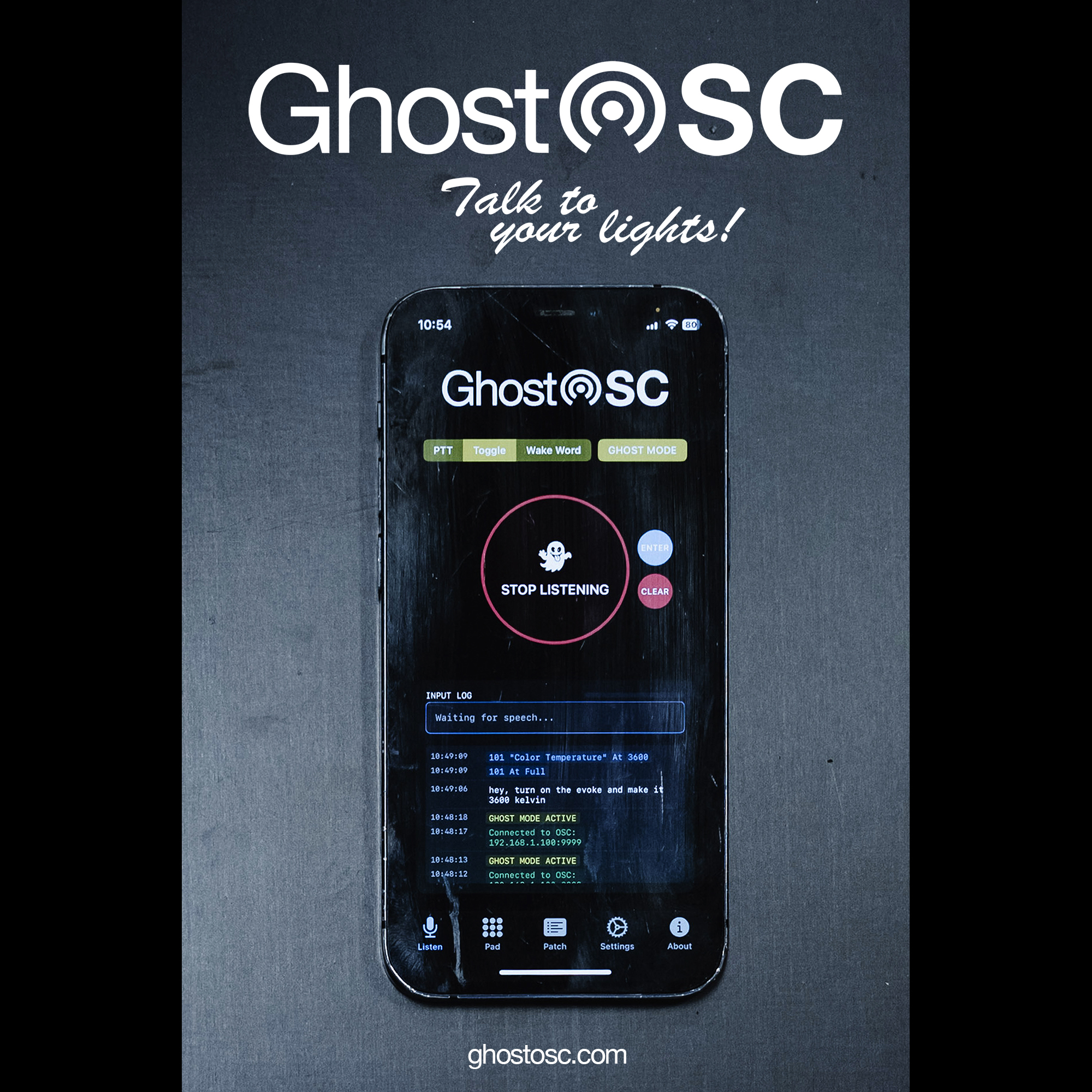
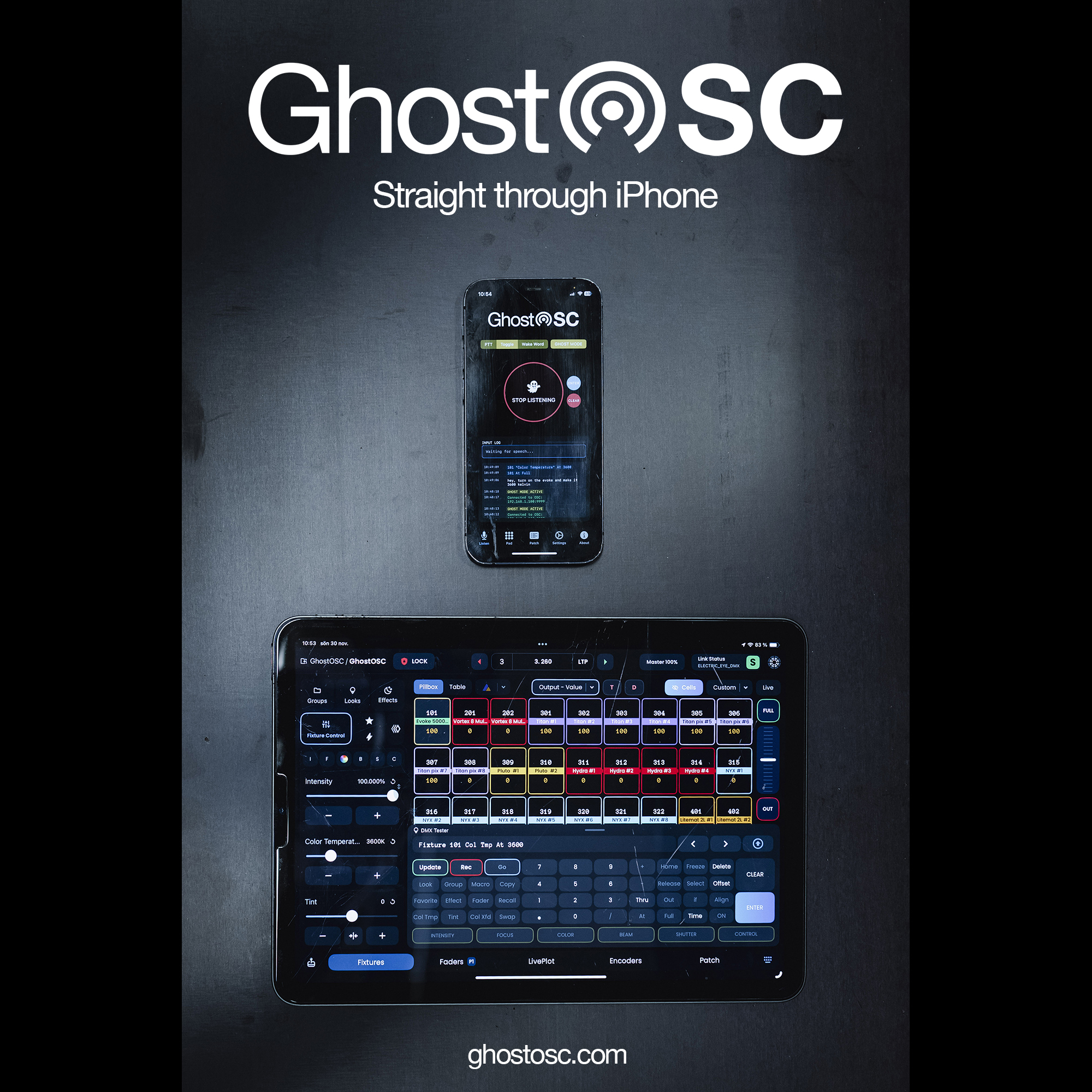
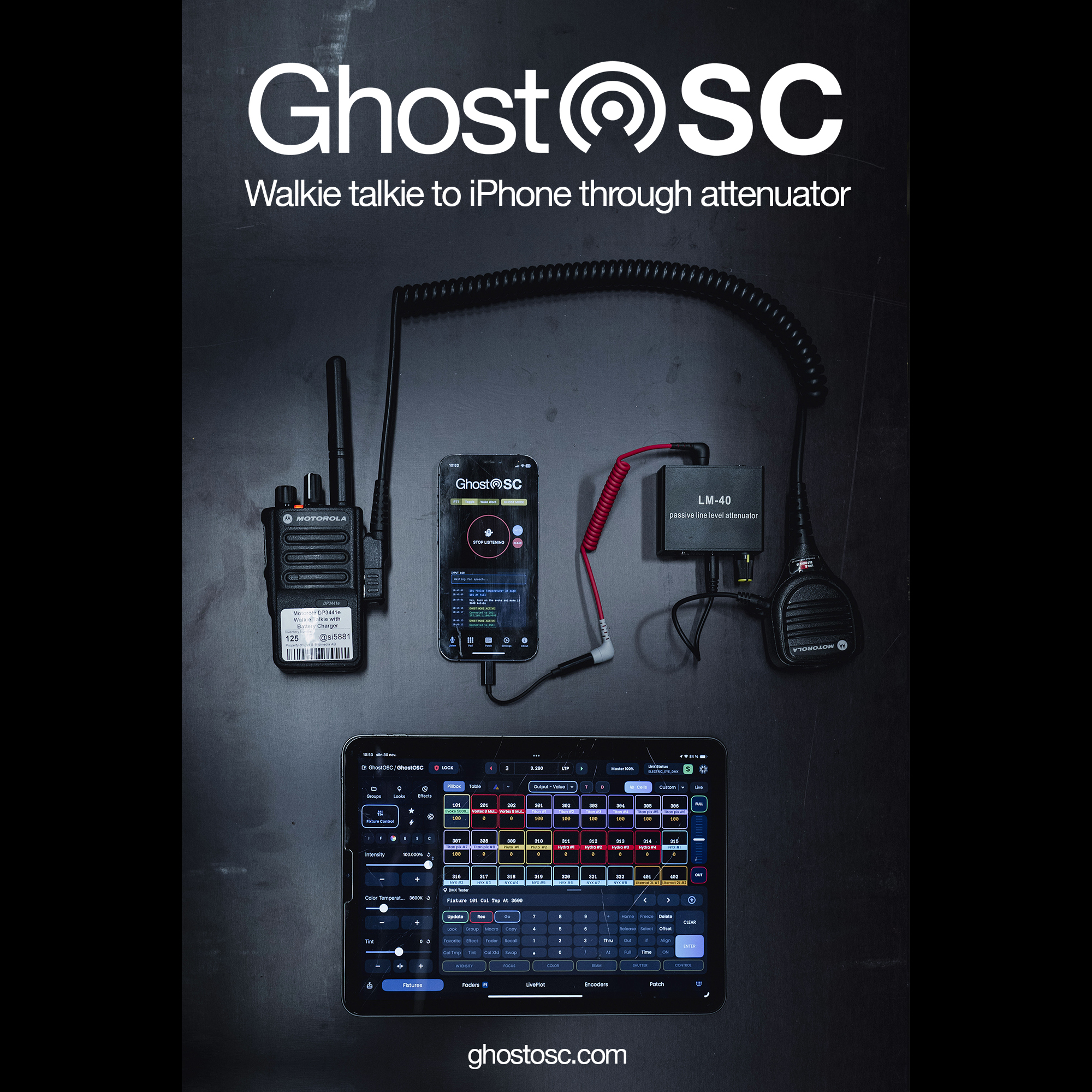
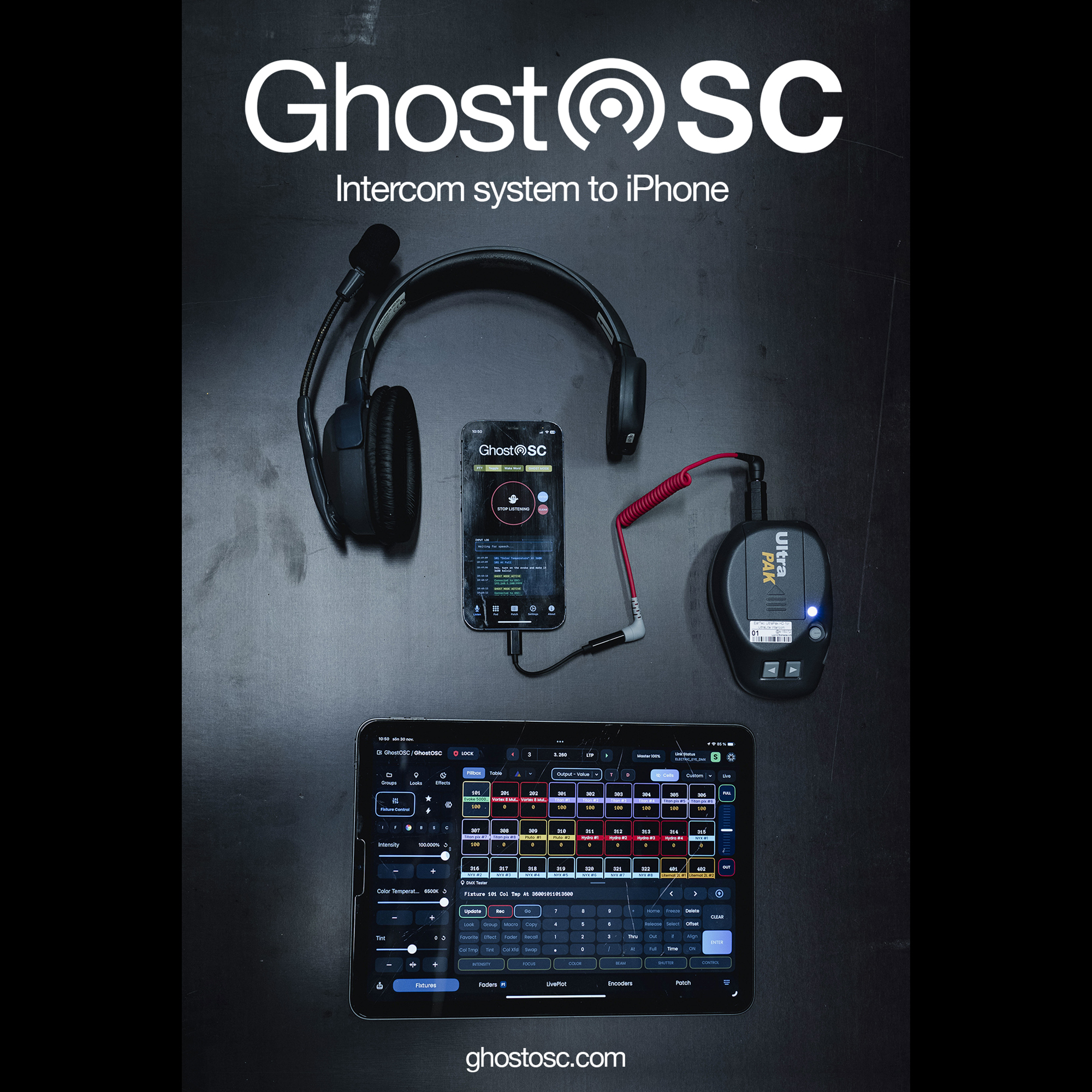
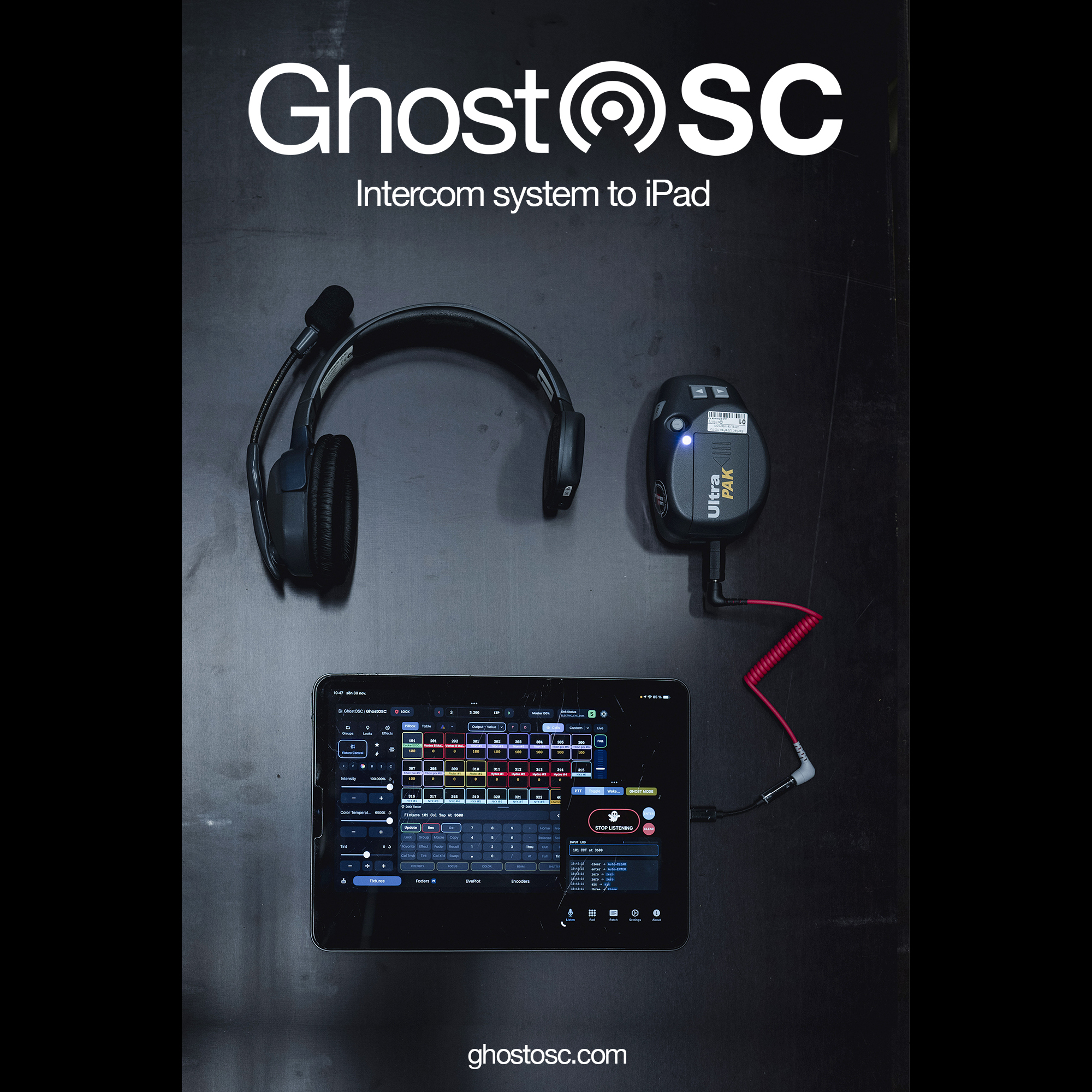
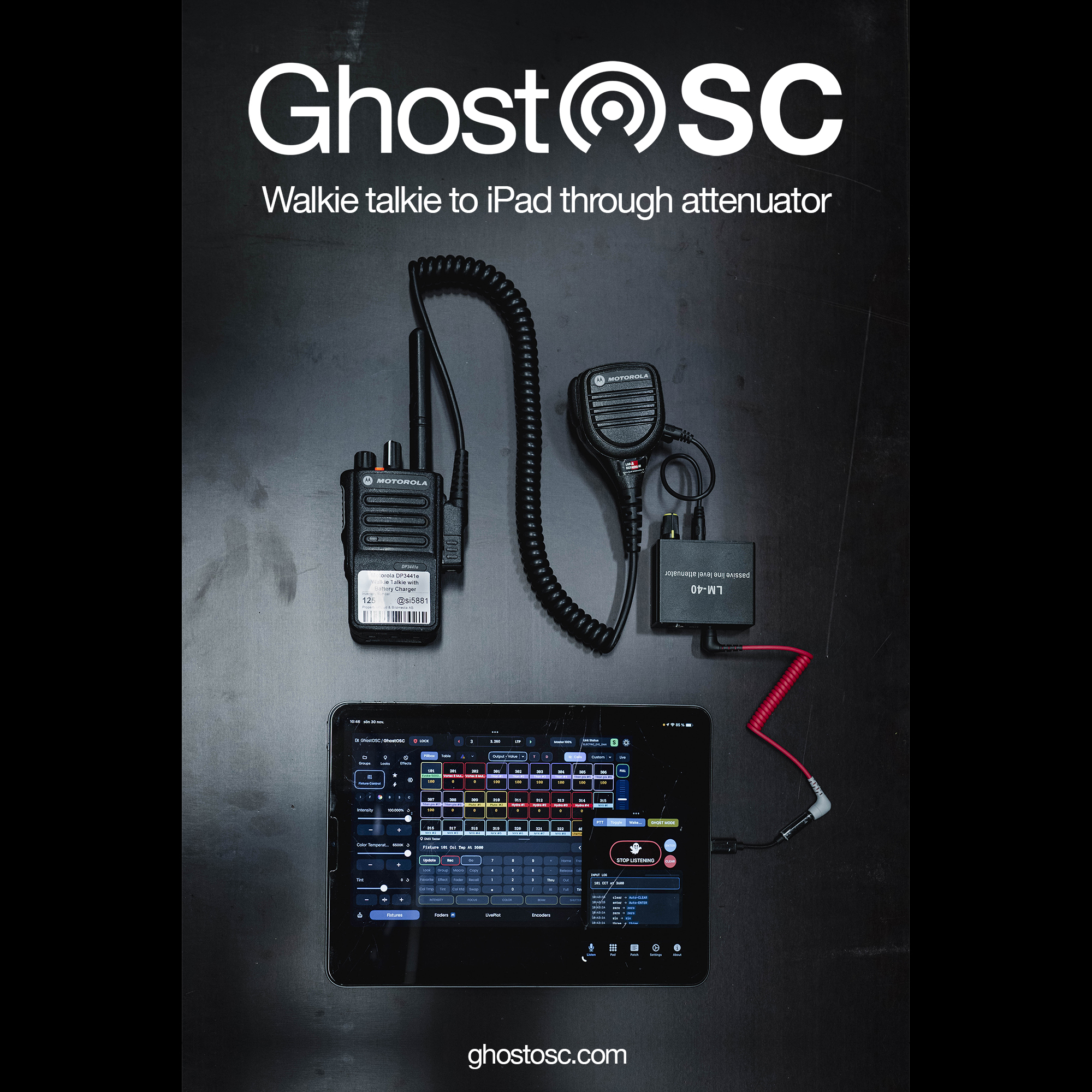
To connect another audio input to your iPhone/iPad through 3.5mm phone jack requires the following:
Make sure to adjust all audio levels (see audio level bar in the listen tab in the app) to avoid distortion.